
Before your first withdrawal, GSpot88 needs two things from you: your completed Personal Information and a verified identity, also called KYC. Identity verification is usually reviewed within three minutes, and when we tested it, our verification was approved in under a minute. This guide covers both steps, the IDs you can use, and what to do if your verification is rejected. If you do not have an account yet, start with our guide to registering on GSpot88.
Personal Information and Identity Verification Are Separate
The two steps sit in different places and do different things, and you need both before you can withdraw.
| Personal Information | Identity verification (KYC) | |
|---|---|---|
| Where to find it | Member > Profile > Personal Information | The account verification (KYC) button in your account menu |
| What you provide | Real Name, Gender, and Birthday | A government ID, a liveness check, and a selfie |
| What it does | Moves your account from VIP 1 to VIP 2 | Confirms that you are who you say you are |
How to Complete Your Personal Information
- Go to Member > Profile > Personal Information. If you open Withdrawal first, you can also tap the Go to Verify button that appears there.
- Fill in your Real Name, Gender, and Birthday. Your username and mobile number are already filled in from registration.
- Tap Save Information.
Your account moves to VIP 2 once your Real Name and Birthday are saved. Until then, the Withdrawal page shows a notice that your membership level is not enough, along with the details that are still missing.
Enter your real name exactly as it appears on your government ID, since identity verification checks that the two match. The page also notes that any error in your information will affect your member rights. If you entered something incorrectly, contact our support team to have it corrected.
The same page has the Login Verification toggle, which sends a code by SMS when you log in. It is worth turning on while you are there.
Before You Start Identity Verification
Have these ready before you begin:
- A physical government ID that has not expired. Photos of an ID on a screen are rejected.
- The same name on your ID as the Real Name in your profile
- A flat, dark surface and good lighting, so you can photograph the whole ID without blur or glare
- A spot facing natural light for your selfie, with no glasses, hat, or face covering
Screen photos and glare are the most common reasons we see verifications rejected, so take a moment to get a clean, clear photo of the card itself.
Accepted IDs
You can verify with any of these:
- National ID (PhilSys)
- Philippine Passport
- Driver’s License
- UMID
- SSS ID
- TIN ID
- Postal ID
- Voter’s ID
- NBI Clearance
- PRC ID
For the National ID, only the physical PhilSys card is accepted. Screenshots from the eGov PH or PhilSys app, a photo of the ID on a phone screen, paper ePhilID printouts, and digital QR-only versions are not accepted.
How to Verify Your Identity, Step by Step
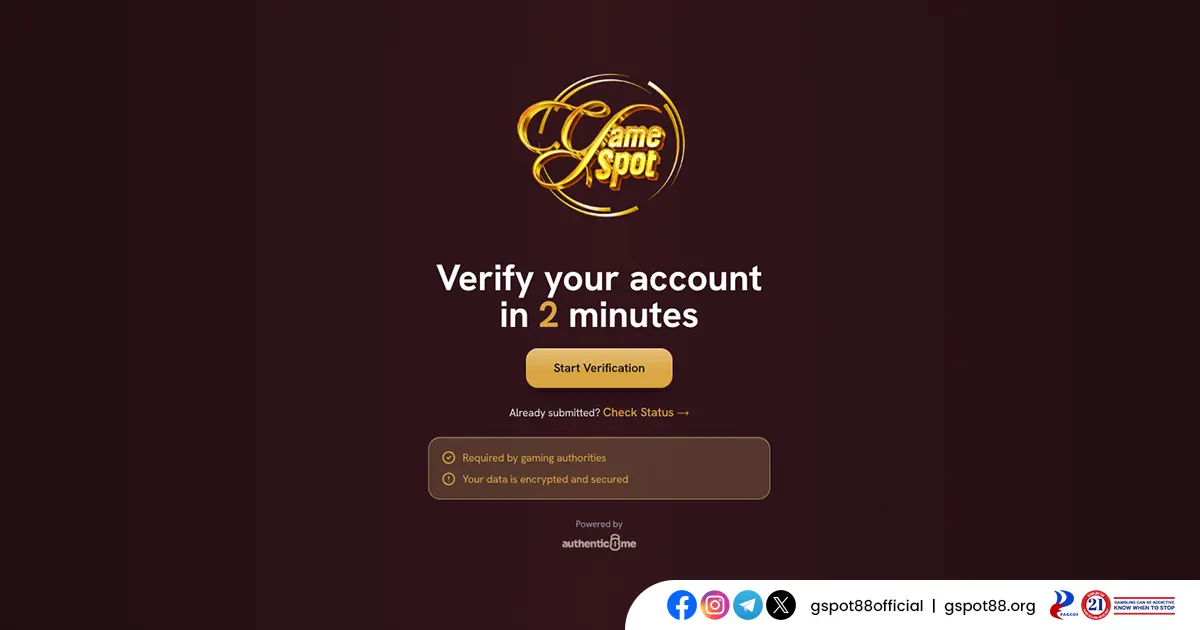
Tap the account verification (KYC) button in your account menu. Verification opens on a separate, dedicated page in your browser, even if you start from the app. Tap Start Verification, then complete five steps:
| Step | What you provide |
|---|---|
| 1. Details | Your Username, Full Name, Date of Birth, Email, and Phone, plus your payout details: Payment Method, Account Name, and Account Number |
| 2. Document | Your document type, then photos of the front and back of your ID (front only for a passport) |
| 3. Liveness | A short liveness check, following the instructions on screen |
| 4. Selfie | A selfie |
| 5. Review | A final check of everything before you submit |
The Account Name in your payout details must match your real name, because withdrawals only go to accounts in your own name. Our withdrawal guide explains how payouts work after you are verified.
Checking Your Verification Status
When your application has been reviewed, we let you know by email, SMS, and a notification on the platform. You can also check at any time by opening the verification page and tapping “Already submitted? Check the Status.”
| Status | What it means |
|---|---|
| Pending Review | Your application is waiting to be reviewed |
| Being Validated | Your details and documents are being checked |
| Approved | Your identity is verified |
| Rejected | Your application was not accepted, and the reason is shown |
| Resubmission Required | You need to submit your details or documents again |
While an application is pending, you cannot submit a new one for the same username.
If Your Verification Is Rejected
A rejected application always shows the reason, so start there. Rejections usually come down to one of these:
- A photo of an ID on a screen instead of the physical card
- Glare or blur on the ID photo
- An expired ID
- A name on the ID that does not match the Real Name in your profile
- A digital or printed version of the National ID instead of the physical PhilSys card
Fix the issue and submit again. Each resubmission creates a new ticket. If you are still not sure why your application was rejected, our support team can help through Live Chat, phone, or email.
Questions About Verification
Can I verify my identity on a computer?
Yes. It is one of the questions players ask our support team most often. When we tested it, verification worked on both a phone and a computer, as long as the device has a camera for the liveness check and selfie.
Do I need to verify before I can deposit?
No. You can deposit without verifying. Personal Information and identity verification are only required before you withdraw.
Is my ID information safe?
Identity verification is handled by a verification partner on Spotlight Gaming Group’s behalf, and your details are used to confirm who you are. Our security page explains how your account and personal data are protected.